
- ZappoPOS
- General stores & grocery
Billing software for grocery and general stores
Hundreds of items, a queue at the counter, and customers who want a proper bill. ZappoPOS keeps your items and prices in one place, so a bill is typed in seconds and kept for later. It can keep your customer accounts, your stock count and your profit too.
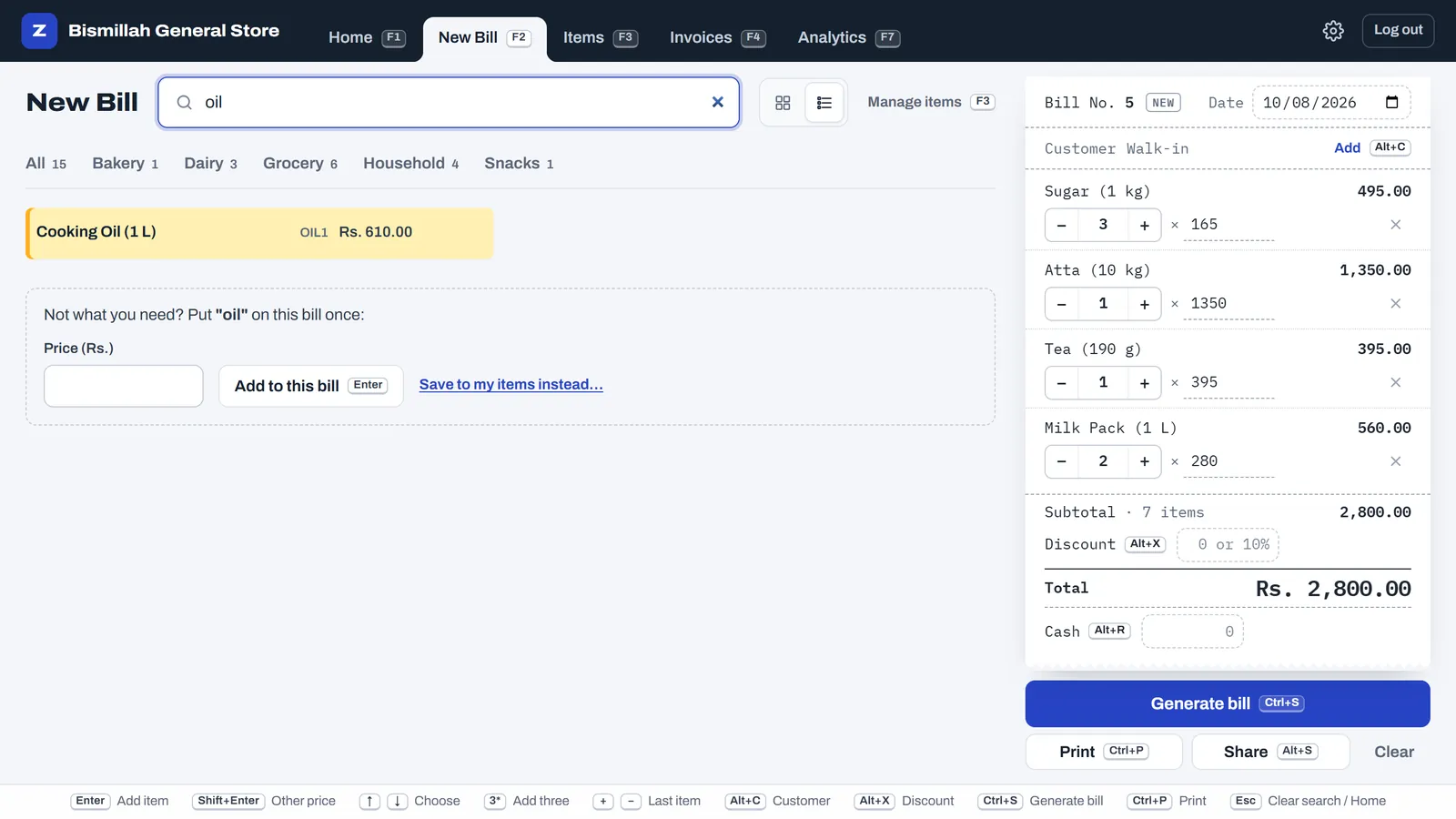
Two or three letters, then Enter
Type the start of an item's name or its code, and the best match is highlighted. Press Enter and it's on the bill; the box clears for the next item. Your hands never leave the keyboard.
- 3*sugar adds three packets in one go. + and − change the last item.
- Use the plain list, without photos, if you have hundreds of items. Categories like Grocery, Dairy and Household keep it tidy.
- Something not in your list? Type its name, give the price, and it goes on this bill.
Use your barcode scanner
Most USB barcode scanners type the number and press Enter, just like a person would. ZappoPOS treats it the same way:
- In Items, open an item and click in the Code box.
- Scan the packet. The barcode number fills in; save.
- At the counter, scan the packet on the New Bill screen. The item goes on the bill.
Loose items without a barcode, like lentils by the kilo, keep a short code you type yourself.
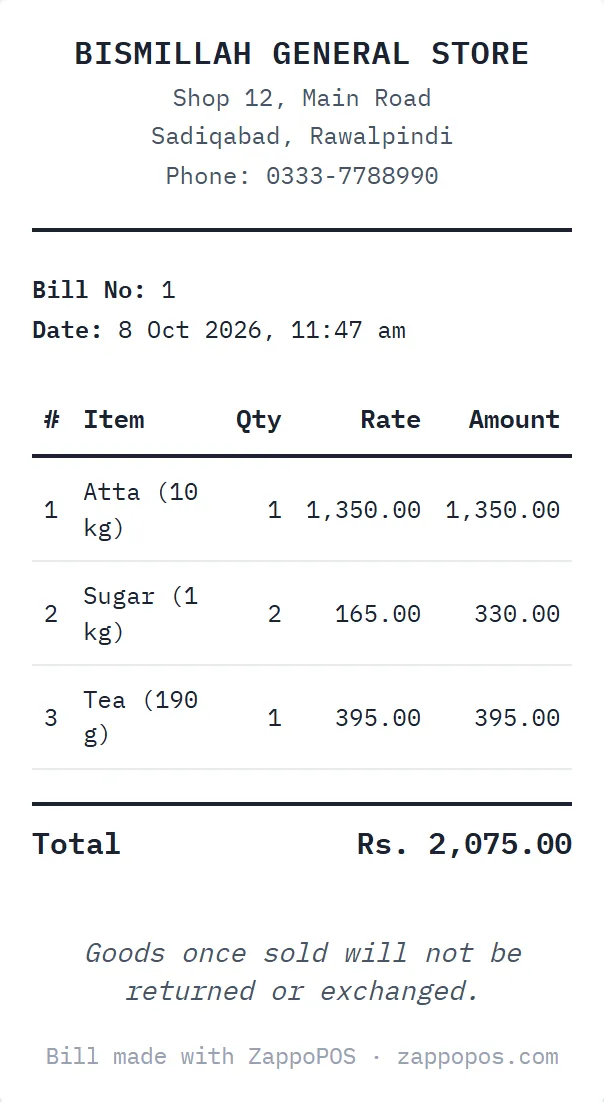
Bills your customers keep
Print on an 80 mm receipt printer or a normal A4 printer. Your shop name, address, phone and logo go on top, and your note, like "Goods once sold will not be returned", at the bottom.
For regular customers and home deliveries, send the bill on WhatsApp instead of printing. Put the customer's name and phone on the bill, and you can find all their bills later by searching for either.
Change a price in Items once; old bills keep the price they were sold at.
Customer accounts, without the notebook
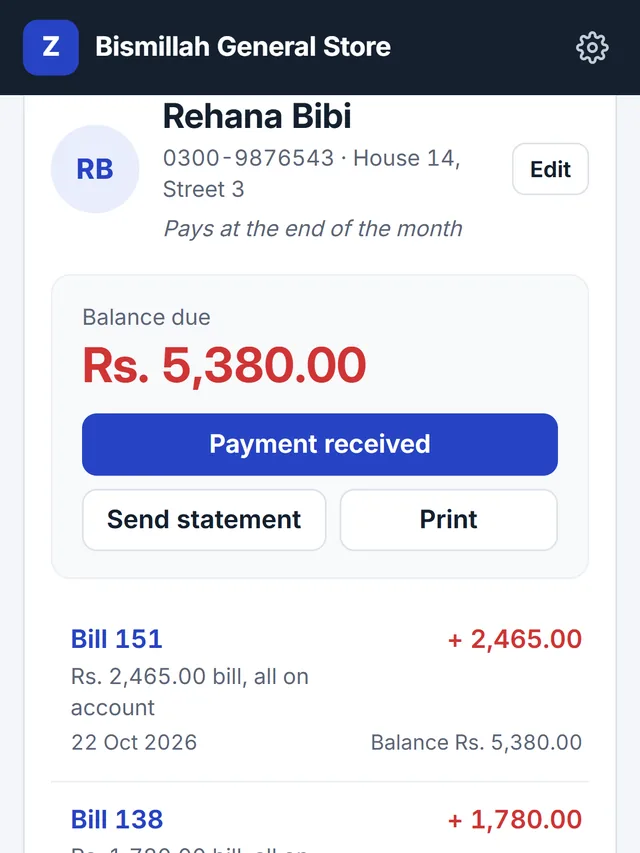
Regular customers who pay at the end of the month? Switch on Customer accounts in Shop settings, and what they owe is kept with their bills instead of in a notebook that gets lost or argued over.
-
Pay later at the counter
Type the customer's name on New Bill and pick their account. Tick Pay later: whatever isn't paid now goes on their account, and you see what they'll owe after this bill.
-
Payment received
When they pay, all of it or a part, note it on their account. The balance is always worked out from their bills and payments, so it can't be added up wrong.
-
Statement on WhatsApp
Send a customer their bills and payments with the balance after each, as a WhatsApp message. Or print it for the ones who come in.
What's left on the shelf, and what you earned
Two more switches in Shop settings. Use one, both or neither; switching one off hides it and keeps what you saved.

Stock
- Count your shelves once with Count stock: type what's there, and Enter moves to the next item.
- Every bill takes off what it sold. Add stock when the supplier delivers, and take out damaged or expired packets.
- New Bill shows how many are left next to each item and warns when one runs low. It never stops a sale.
Profit
- Add what each item costs you. Bought a carton of 24 for Rs. 13,152? Type that, and the cost of one is worked out.
- Analytics shows your profit and margin, the items that earn the most, and the ones with the thinnest margin.
- Old bills keep the cost they were sold at, and staff don't see cost prices unless you allow it.
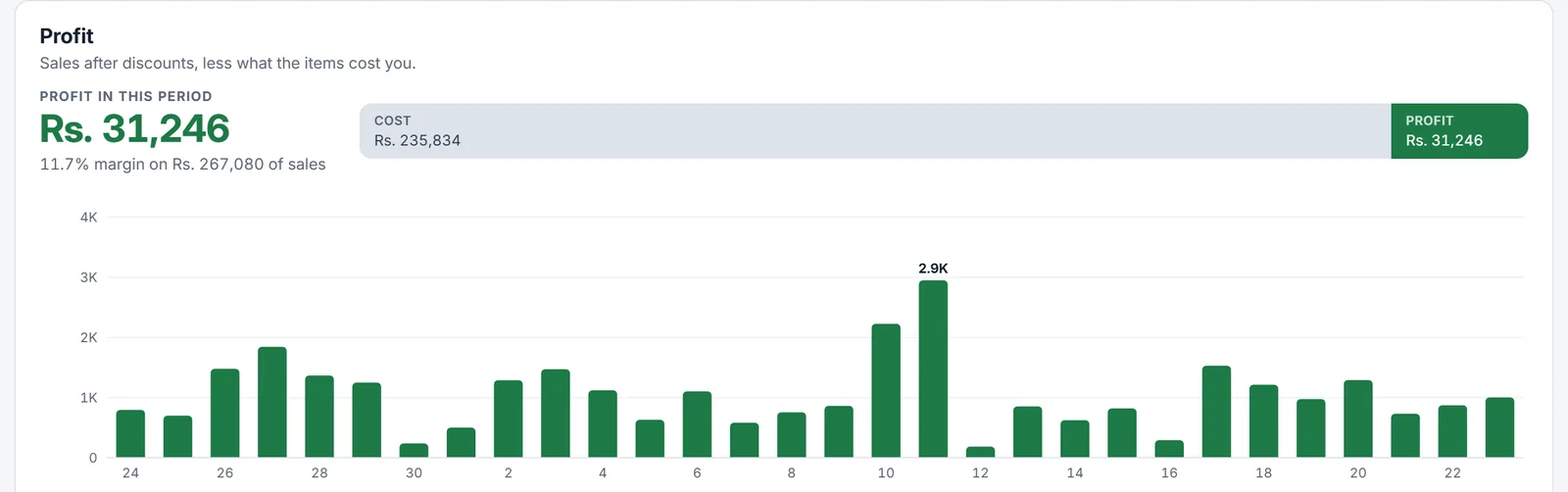
Know your day, and your month
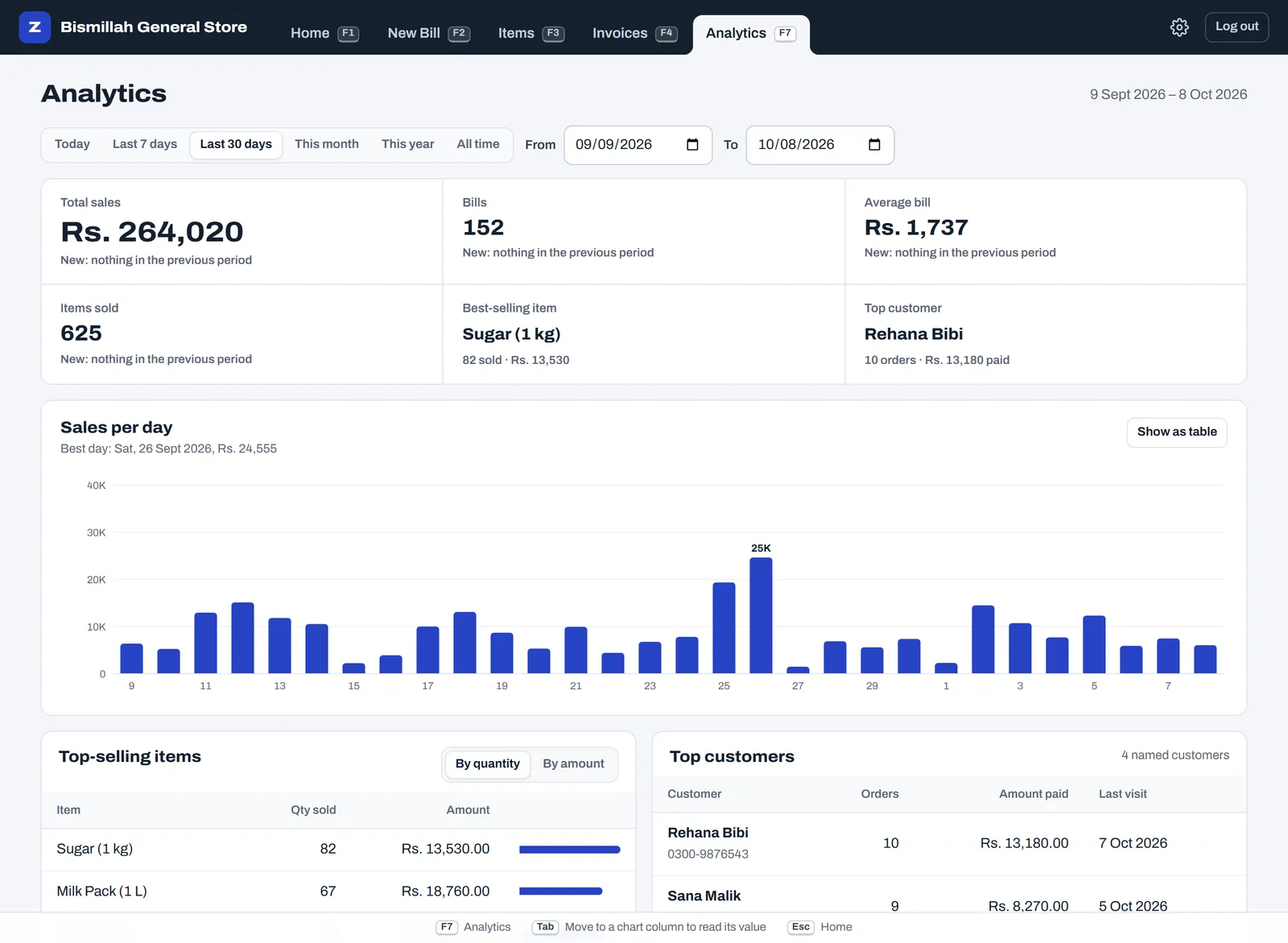
The home screen shows today's sales and number of bills. Analytics shows what sells most, your busiest days and hours, and your regular customers, compared with the period before.
Is ZappoPOS right for your shop?
A good fit for
- grocery and general stores
- small retail: stationery, cosmetics, mobile accessories, hardware
- shops with one counter, or a few computers sharing one account
- owners who want a record of every sale without learning accounting software
- shops that let regular customers pay later and want their accounts in one place
Pick something else if you need
- purchase orders and supplier accounts
- batch numbers or expiry dates on each packet
- an FBR-integrated POS, which Tier-1 retailers such as supermarket chains must use
- sales tax lines on every bill
Questions
Something else? Ask the Zappo Team.
Do I have to add every item before I start?
No. Add the things you sell most, then start billing. If an item isn't in your list yet, type its name, enter the price, and it goes on that bill; add it to your items later so its price fills in next time.
Can I bring my item list from Excel?
Not yet. Adding items is quick, though: the form stays open after each one, so you can type name, price, Enter, and go straight to the next item.
How many items can I have?
There's no fixed limit. We've tested with more than 300 items, and search still answers as you type.
Can two counters use it at the same time?
Yes. Log in on several computers or phones with the same account. Each bill gets its own number, and every bill shows up on all of them. On the Team plan each cashier also gets their own login, so you know who made every bill and who gave a discount; with two or more shops, the Multi-Branch plan numbers each branch's bills on its own.
What happens to old bills when I change a price?
Nothing. Old bills keep the price they were sold at; the new price is used from the next bill.
Can regular customers buy now and pay later?
Yes. Switch on Customer accounts in Shop settings. On New Bill, type the customer's name, tick Pay later, and what isn't paid goes on their account. The Customers page shows who owes what; note payments when they come in, and send a statement on WhatsApp. Moving from a notebook? Enter what each customer already owes when you open their account.
Can it count my stock?
Yes. Switch on Stock in Shop settings, then count your items once in Items (Count stock). Every bill takes off what it sold, you add stock when the supplier delivers, and you can take out damaged or expired packets. When something runs low, New Bill warns you, but it never stops a sale. Each branch keeps its own count.
Can I see my profit?
Yes. Switch on Profit in Shop settings and add what each item costs you; for a sack or a carton, type what you paid for how many and ZappoPOS works out the cost of one. Analytics then shows your profit, your margin and the items that earn the most. Staff don't see cost prices unless you allow it.
Add your top 50 items tonight, bill with them tomorrow
Free for 7 days. No card, nothing to install.