
Printing bills on an 80 mm thermal receipt printer
Thermal receipt printers are cheap, quick and need no ink, but the first print from a browser often comes out wrong: tiny, with a web address in the corner, or with half a metre of blank paper after it. Here is how to set one up properly, and how to fix each of those problems.
Updated 8 October 2026 · Works for any browser-based billing, including the free bill maker and ZappoPOS.
What you need
- An 80 mm thermal receipt printer with a USB cable. 80 mm is the usual size for shop counters; 58 mm printers use narrower rolls, and bills laid out for 80 mm won't fit them.
- The printer's Windows driver, from the CD in the box or the maker's website.
- Chrome or Edge on the counter computer.
- 80 mm thermal paper rolls. Thermal paper prints on one side only; if the bill comes out blank, the roll is in the wrong way round.
1. Install the driver and choose the paper
- Install the driver before plugging the printer in, then connect it and switch it on.
- Open Settings → Bluetooth & devices → Printers & scanners (Windows 10: Settings → Devices → Printers & scanners), click the printer, then Printing preferences.
- Find the paper size and choose the 80 mm roll size the driver offers. Names differ by maker: "80 x 297 mm", "Receipt", "Roll paper 80 mm". If there is a choice between a fixed length and "receipt" or continuous mode, choose the continuous one, so the paper stops where the bill ends.
- Print a Windows test page from the same window. If that comes out right, the printer side is done.
If the counter computer is used only for billing, make the receipt printer the default printer. It saves a click on every bill, and it's needed for printing without the dialog (step 5).
2. Print settings in Chrome and Edge
Open a bill and press Ctrl+P. In the print window:
| Setting | Choose | Why |
|---|---|---|
| Destination | Your receipt printer | "Save as PDF" is the default the first time. |
| Paper size | The 80 mm roll size | Chrome remembers the last size per printer. |
| Margins | Default | The bill sets its own small margins for receipt paper. |
| Scale | Default (100) | "Fit to page" can shrink the text. |
| Headers and footers | Off | Otherwise the date and the web address print on the bill. |
| Background graphics | Off | Thermal printers print black only; backgrounds waste paper. |
Chrome and Edge remember these settings, so you set them once.
3. Set ZappoPOS to receipt paper
In ZappoPOS, open App settings (the gear, or F8) and choose Receipt roll 80 mm — thermal printer under Printer paper. Bills then use a narrow layout in a receipt font, without item photos, which thermal printers can't print well.
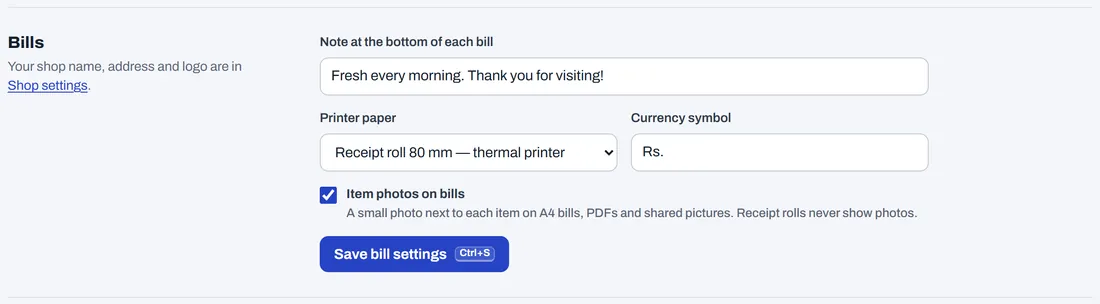
In the free bill maker, choose Receipt 80 mm above the preview instead. Customers who'd rather not have paper? See sending bills on WhatsApp.
4. Print without the print window
At a busy counter, the print window is one step too many. Chrome can skip it and send every print straight to the default printer:
- Make the receipt printer the Windows default printer.
- Right-click the Chrome shortcut on the desktop, choose Copy, then Paste to make a second shortcut. Rename it "ZappoPOS".
- Right-click the new shortcut → Properties. In Target, after
chrome.exe", add a space and--kiosk-printing https://zappopos.com/billing.html, then click OK. - Close all Chrome windows, then open ZappoPOS with the new shortcut.
Now Print in ZappoPOS (or Ctrl+P on the New Bill screen) saves the bill, prints it straight away, and opens a fresh bill for the next customer. The setting applies to everything printed from that Chrome window, so use your normal Chrome shortcut for other printing.
5. Problems and fixes
The bill prints very small, in the middle of the paper
The printer is set to A4 or Letter paper, so Chrome shrinks the page to fit. Choose the 80 mm roll size in the driver (step 1) and in Chrome's Paper size, and set Scale to Default.
A date and a web address print at the top or bottom
Those are Chrome's headers and footers. Untick Headers and footers under More settings in the print window.
A long blank strip comes out after the bill
The driver is using a fixed page length. Look in Printing preferences for a receipt, continuous or "page length: auto" option. If the driver has none, choose the shortest 80 mm size it offers.
The right edge of the bill is cut off
Usually a 58 mm printer, or 58 mm paper in an 80 mm printer. Check the roll width. Otherwise, set Margins to Default and Scale to Default.
Nothing prints, or the paper comes out blank
Blank paper: the roll is in upside down; thermal paper only prints on the coated side. Nothing at all: check that the printer is on, has paper and is the one chosen in the print window, then print a Windows test page.
The logo prints as a grey patch
Thermal printers print in black only, so colours and gradients turn into dots. Use a simple black logo on white for receipts. In ZappoPOS, change it in Shop settings.
Urdu text prints in the wrong font
The browser uses the Urdu font installed in Windows. It prints correctly; it just won't match the English receipt font. Nothing needs fixing.
Printer ready? Make the first bill.
ZappoPOS keeps your items and prices, prints on 80 mm or A4, and saves every bill. Free for 7 days.